Setting Everything Up
Assuming you already own Core Keeper on Steam, you already have access to the dedicated server software.
- Open your Steam Library
- Search for Core Keeper (the server is usually hidden until searched)
- Install Core Keeper Dedicated Server
After installing the game server, you can immediately open the server within Steam, however we need to set some things up.
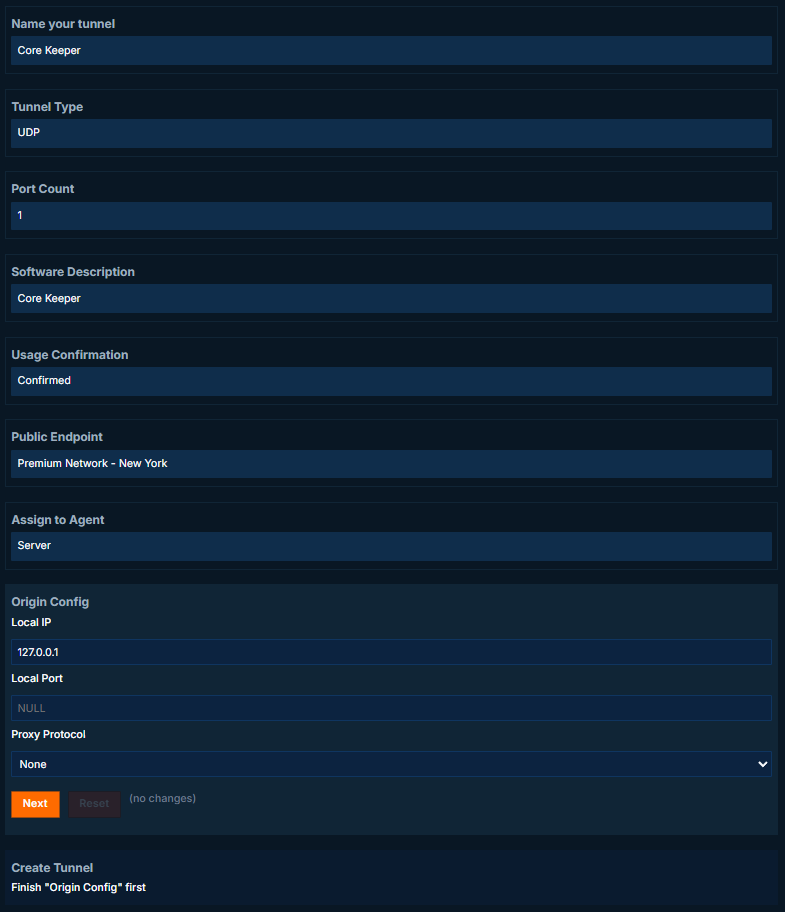
Create the tunnel
- Type: UDP
- Local IP: 127.0.0.1
- Port: NULL
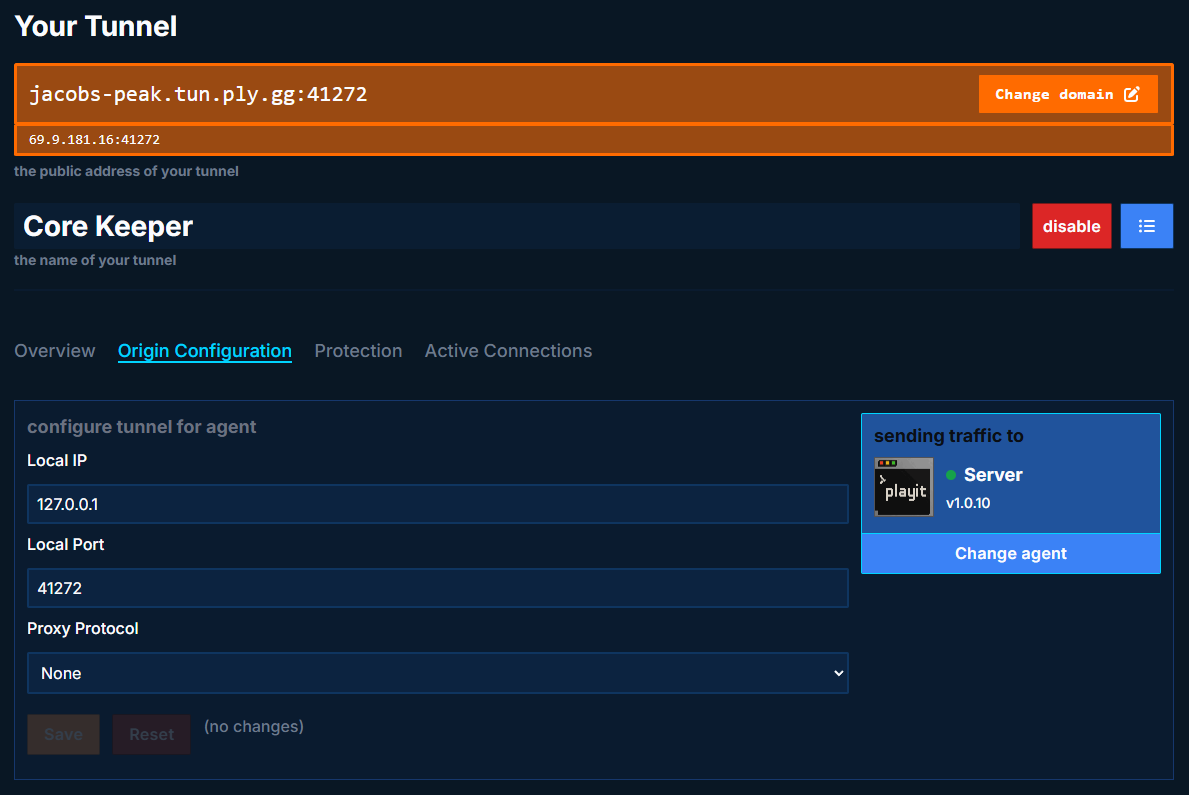
After the tunnel is created, set the local port to the tunnel’s public facing port (41272)
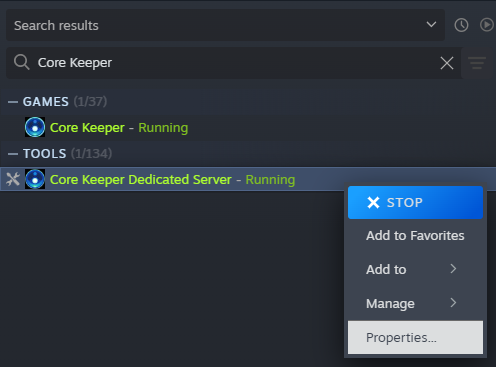
Right click Core Keeper Dedicated Server, and then go to Properties.
Here’s our launch arguments, please modify these values to match your port
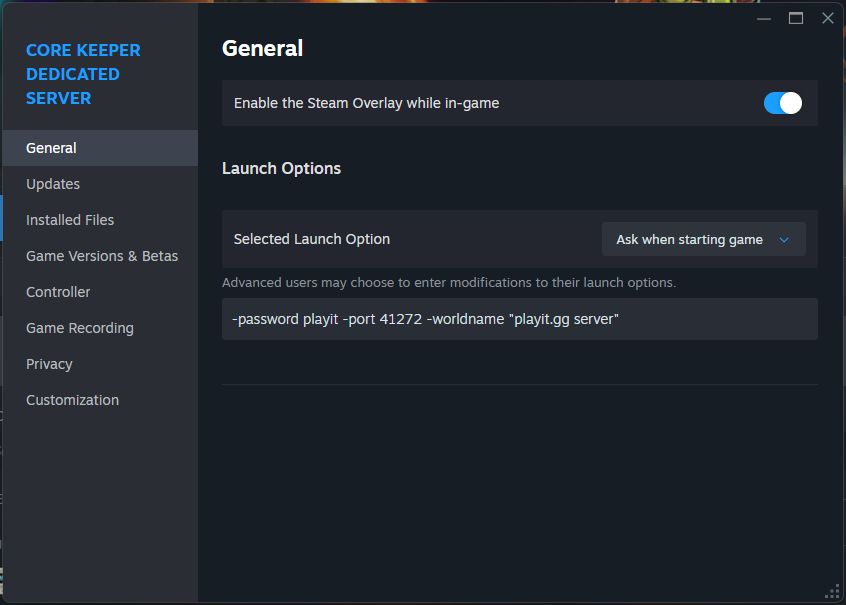
-password playit -port 41272 -worldname "playit.gg server"
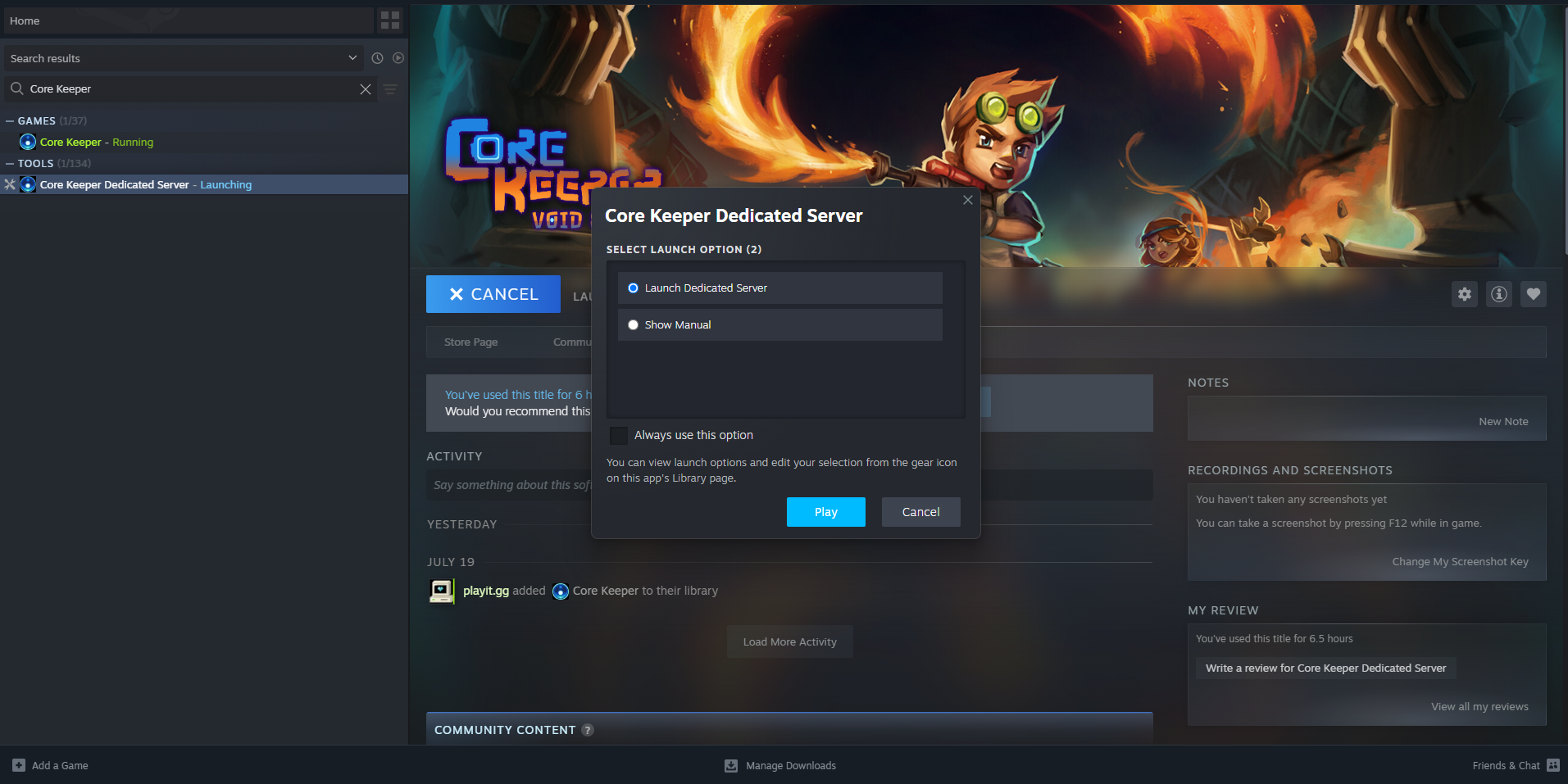
You can now launch the server through Steam.
Joining the game
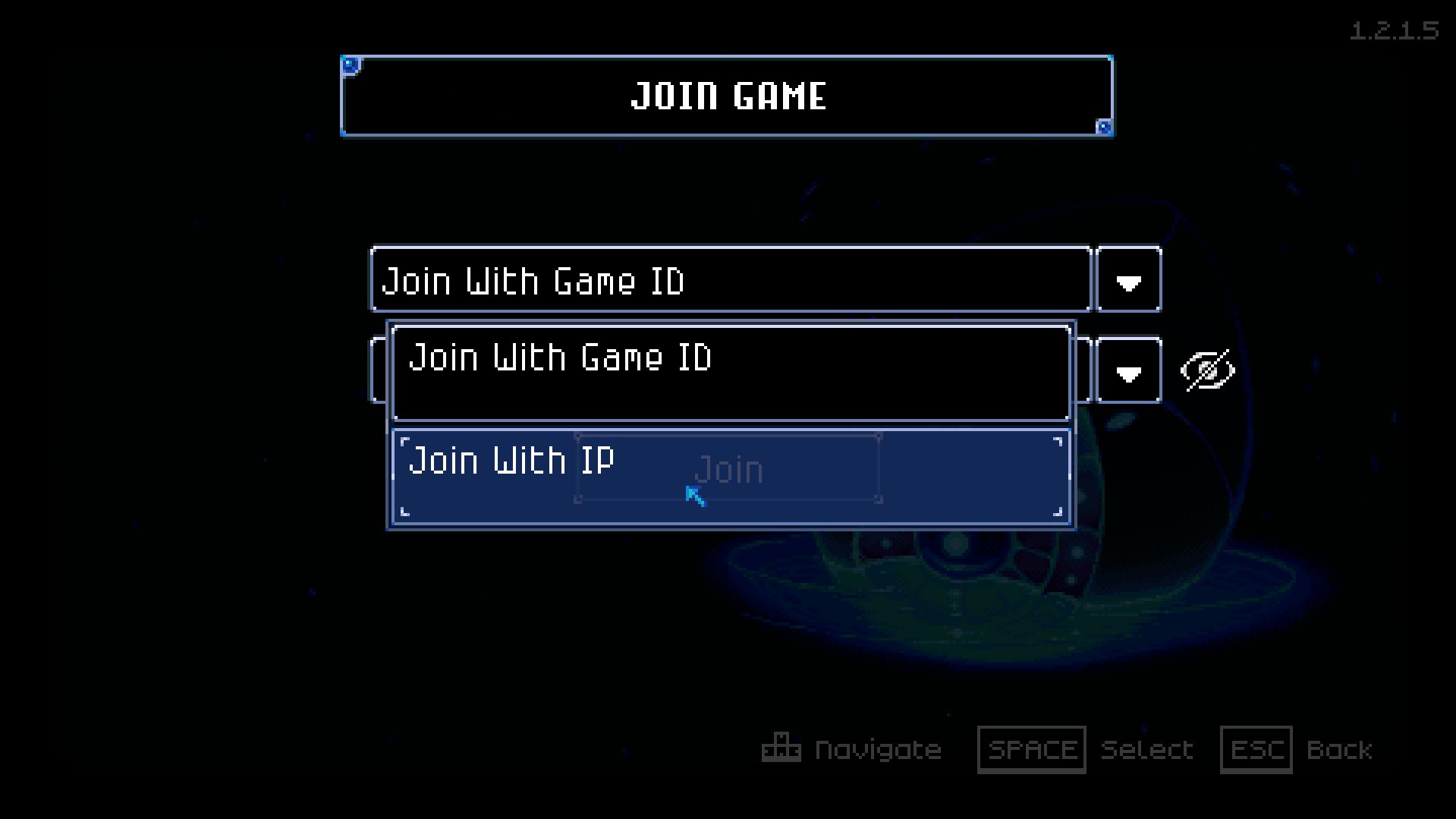
You’ll have to join with IP. Do this by entering the dropdown menu.
Paste the tunnel’s IP address and port. Enter the server’s password.
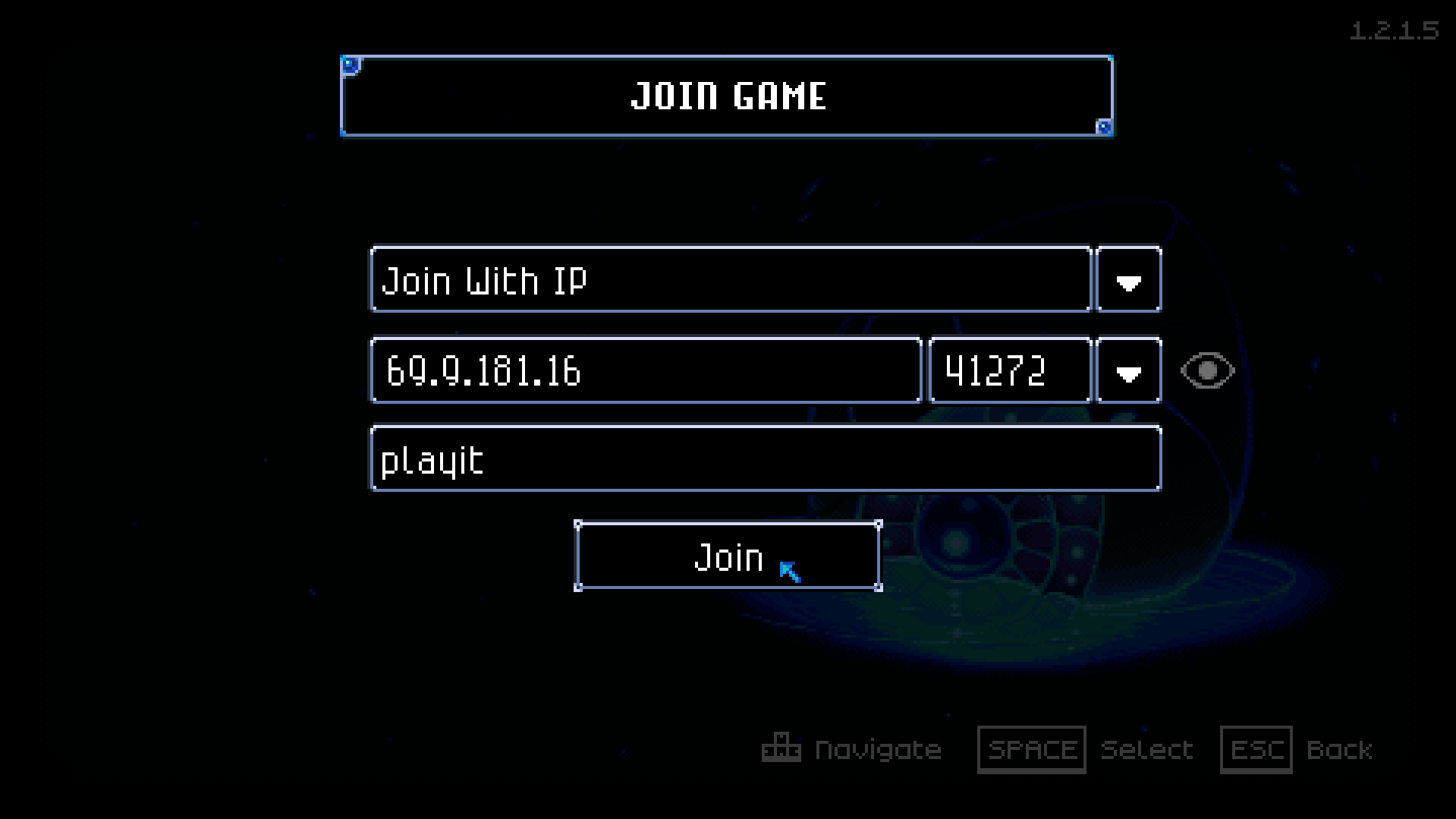
After waiting a few moments, you should be loaded into the server.